

TL;DR
SQL Server Recovery Pending means the engine could not finish starting database recovery because a file, permission, or disk-space problem is blocking it.
- The data is usually intact: find the root cause in the SQL Server error log, fix it, then set the database ONLINE.
- Always confirm you have a current backup before attempting any repair.
- Use
DBCC CHECKDB REPAIR_ALLOW_DATA_LOSSonly as a last resort, because it is irreversible and deletes data.
What SQL Server Recovery Pending Means
A database in Recovery Pending hit a resource-related error during recovery and needs manual intervention before recovery can finish. It is different from the other states you might see:
- RECOVERING is the normal, temporary "recovery is running" state. It moves to ONLINE on its own when recovery succeeds.
- RECOVERY PENDING means recovery could not even start because of a missing or inaccessible resource. The database is not necessarily damaged.
- SUSPECT is more serious. At least the primary filegroup is suspect and may be damaged.
The good news: a Recovery Pending database is usually fine. The data is probably intact; you just need to clear whatever is blocking recovery. The database will not be available to users until you do.
How to Check the Database State
The examples below use a standalone SQL Server user database in SSMS or sqlcmd. Replace the placeholders, confirm the instance and database, and run only the applicable step. GO is a client batch separator. Metadata visibility, database-state changes, backup/restore and repair need different permissions; have your DBA use existing appropriate access. Do not run all sections as one script.
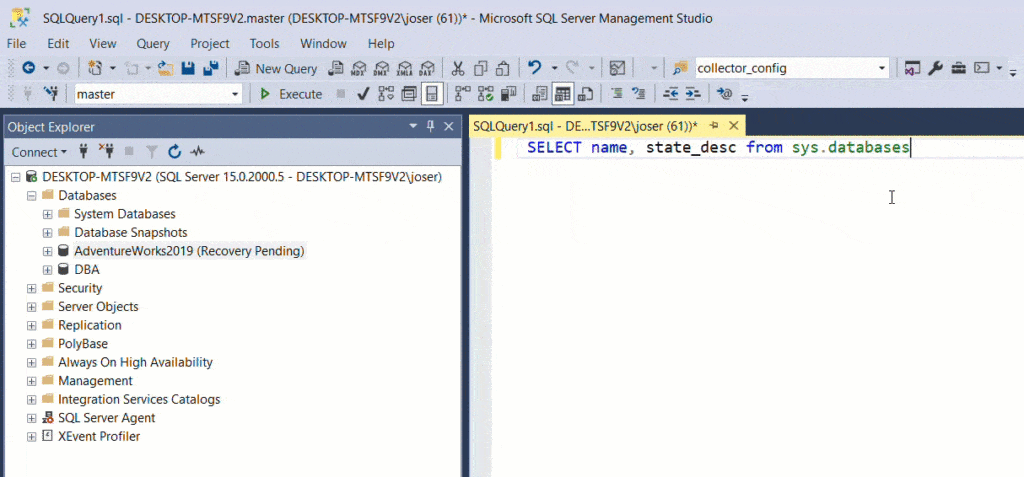
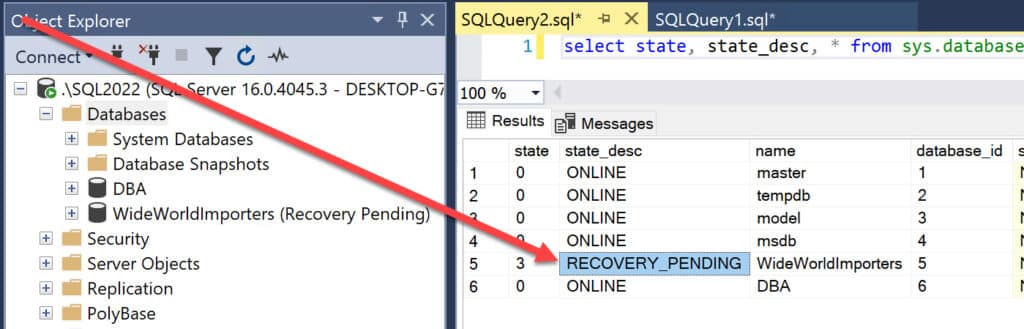
Every SQL Server database is always in one specific state. You can read it from sys.databases:
USE master;
GO
SELECT name, state_desc, user_access_desc, recovery_model_desc
FROM sys.databases
WHERE name = N'YourDatabase';
GO
Note: on SQL Server 2022 and later, reading the error log with sp_readerrorlog requires the VIEW ANY ERROR LOG permission (on 2019 and earlier it was VIEW SERVER STATE).
Why a SQL Server Database Goes Into Recovery Pending
Common root causes include:
- SQL Server shut down unexpectedly (hardware, power, or a crash).
- A data (.mdf/.ndf) or log (.ldf) file is missing, renamed, or moved.
- The transaction log file is corrupted.
- The disk holding the files is missing, offline, or full.
- The SQL Server service account lost permission to the files (often after a server or directory change).
- An upgrade was interrupted partway through.
- Ransomware encrypted the database files.
A note on terminology: when the log fills *during* recovery, Microsoft's Error 9002 documentation describes the state as RESOURCE PENDING, while the database-states page documents RECOVERY PENDING. Either way, disk or log exhaustion during recovery is a real cause. Read the error log for the exact message.
How to Fix SQL Server Recovery Pending: The Safe Order
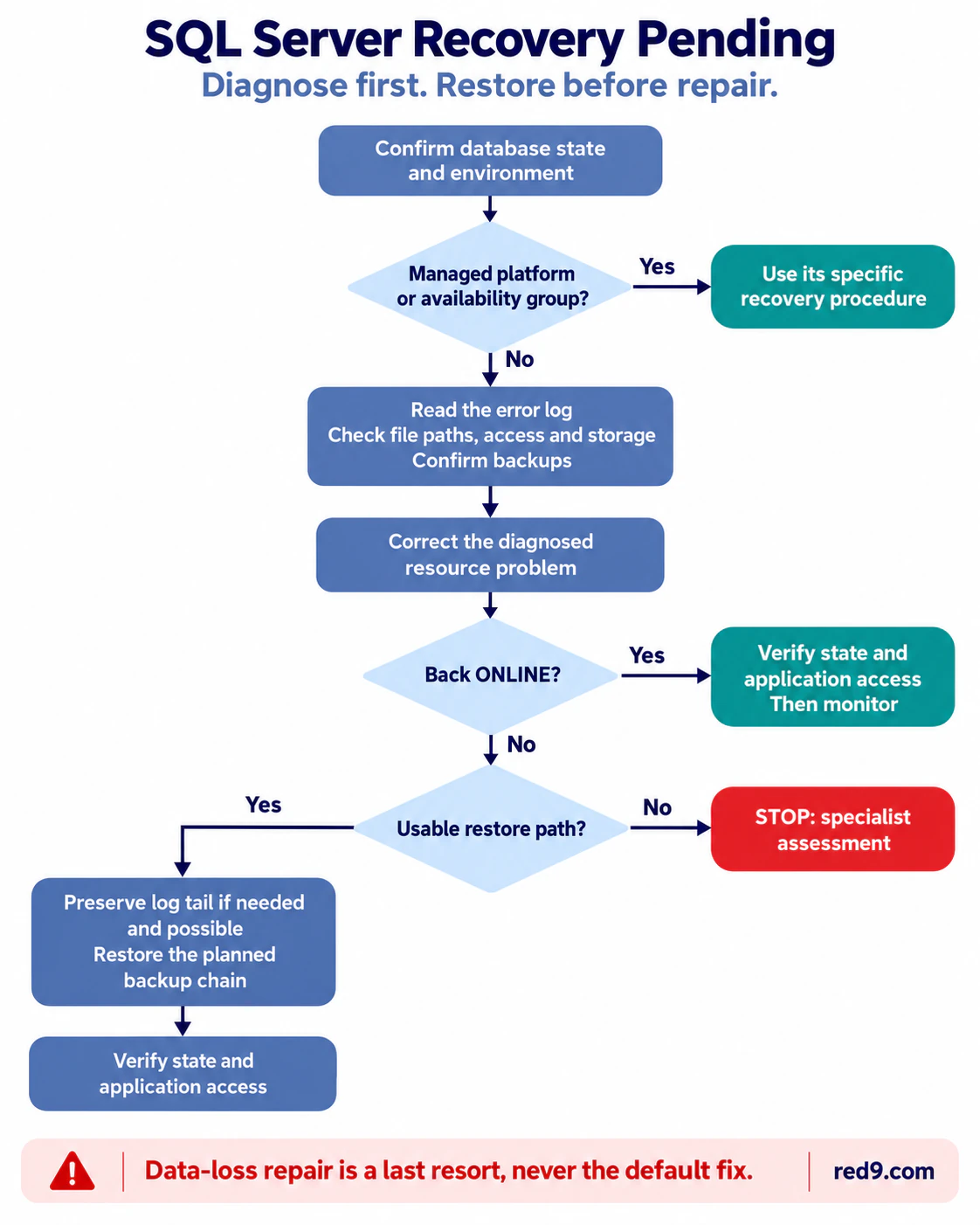
The order matters. Diagnose first, fix the cause, try a clean restart, restore from backup before any repair, and treat emergency-mode repair as the last resort. This order has not changed in SQL Server 2025.
Step 1: Read the SQL Server Error Log
Start here. The error log almost always names the real problem, a missing file, a permission failure, or a resource shortage.
-- Current error log, filtered to your database name:
EXEC sys.sp_readerrorlog 0, 1, N'YourDatabase';
GO
If this database-name filter returns no rows, inspect the unfiltered current error log and relevant archived log around the failure. No matching rows do not prove that no error occurred. See how to find and read the SQL Server error log. On Windows, also check Event Viewer when relevant.
Step 2: Fix the Root Cause
Use the error number, full file path and operating-system message to choose the next check. For standalone SQL Server, this read-only query shows where the instance expects the files:
USE master;
GO
SELECT
    name AS logical_file_name,
    type_desc,
    physical_name,
    state_desc AS file_state_desc
FROM sys.master_files
WHERE database_id = DB_ID(N'YourDatabase');
GO
Replace YourDatabase with the exact database name. These rows show registered paths and file states. They do not prove the files exist, that the operating-system account can access them, or that the disk has free space. No rows can mean an incorrect name or insufficient metadata visibility. Microsoft documents the view and its permissions. Use existing appropriate DBA access; do not grant broad permissions just to run the example.
On Windows, match the error to the next check:
| Error or symptom | What to check next | Avoid |
|---|---|---|
| OS error 2 or 3: file/path not found | Compare the full log path with registered file paths and drive availability. Missing data file: restore a valid backup. Missing log: see the separate strict-conditions discussion. | Empty placeholder files or assuming the log can always be rebuilt. |
| OS error 5: access denied | Have an administrator verify the Windows identity for the failing operation and its file/folder access. Startup and attach/restore can use different contexts. | Blanket permission changes without identifying the failing account. |
| OS error 32: file in use | Identify the locking process with Process Explorer or Handle. Resolve the conflict; follow Microsoft guidance if antivirus is involved. | Disabling protection or using detach/attach as a routine fix. |
| SQL error 9002: transaction log full | Check log_reuse_wait_desc, log-volume free space and file-growth settings. A full log does not always mean a full disk. | Deleting the .ldf file. |
Microsoft documents these file-access errors and the causes of error 9002. Once the underlying cause is corrected, continue to Step 3.
For an availability-group database, follow Microsoft's availability-group recovery procedure with your DBA. The standalone restore and repair examples below are not a drop-in fix for an availability-group database.
Step 3: Try to Bring the Database Online
If the cause is corrected and the database should be recoverable, try the least destructive restart. Run this in auto-commit mode, not inside an explicit transaction:
USE master;
GO
ALTER DATABASE [YourDatabase] SET ONLINE;
GO
After SET ONLINE completes, rerun the state query below. The target should report ONLINE; also verify that the intended application can connect. If it remains unavailable or the command reports an error, stop repeating it and continue to a planned restore. ONLINE by itself does not prove integrity or no data loss.
USE master;
GO
SELECT name, state_desc, user_access_desc, recovery_model_desc
FROM sys.databases
WHERE name = N'YourDatabase';
GO
Step 4: Restore From Backup (the Primary Fix)
If the database still will not recover, restore from a known-good backup using a recovery plan matched to the database and the recovery point you need. Have a DBA verify the backup sets, log-chain continuity, file locations, available space and required access. Resolve application connections before restoring. These examples are for a standalone SQL Server user database; they are not a script to run from top to bottom.
Every YourDatabase and X:\Backups\... value below is a placeholder. The backup directory must exist and be accessible to SQL Server. Run only the scenario that applies, one block at a time, and stop on any error. Do not add WITH REPLACE to get past a backup or restore error.
Preserve the log tail when the recovery plan needs it
For FULL or BULK_LOGGED recovery, a tail-log backup can preserve transactions not yet backed up. It is not required when the chosen recovery point is already in an earlier backup. For a database that failed to start, the documented option is NO_TRUNCATE:
-- Failed-start database; only if this recovery plan needs a tail-log backup.
BACKUP LOG [YourDatabase]
TO DISK = N'X:\Backups\tail_unique.trn'
WITH NO_TRUNCATE;
GO
If the database is actually ONLINE and you are about to restore it, use this alternative instead. NORECOVERY leaves the database unavailable for normal use, so run it only as part of the agreed restore plan:
-- ONLINE database; alternative to the failed-start example above.
BACKUP LOG [YourDatabase]
TO DISK = N'X:\Backups\tail_unique.trn'
WITH NORECOVERY;
GO
For a damaged database, Microsoft describes CONTINUE_AFTER_ERROR. Success depends on an undamaged log, a database state that supports the backup and the absence of bulk-logged changes. Do not turn these options into an automatic retry sequence. If the needed tail cannot be captured, the DBA must explain which transactions cannot be recovered. See Microsoft's tail-log scenarios.
Scenario A: recover only to the end of a full backup
Use this only when the agreed recovery point is the full backup itself and no later differential or log backup needs to be applied. Changes after that backup will not be recovered by this example:
USE master;
GO
RESTORE DATABASE [YourDatabase]
FROM DISK = N'X:\Backups\full.bak'
WITH RECOVERY;
GO
Scenario B: full, differential and log chain through the log tail
This specific example assumes a matching full backup, its differential backup, two required log backups and a successful tail-log backup, all on one valid recovery path. Use the actual backup sets and every required log in order. If the differential is not part of your plan, omit it and restore the logs required after the full backup. A missing or damaged log can limit the recovery point. Execute each RESTORE statement separately; stop immediately if one fails.
USE master;
GO
RESTORE DATABASE [YourDatabase]
FROM DISK = N'X:\Backups\full.bak' WITH NORECOVERY;

RESTORE DATABASE [YourDatabase]
FROM DISK = N'X:\Backups\diff.bak' WITH NORECOVERY;

RESTORE LOG [YourDatabase]
FROM DISK = N'X:\Backups\log_1.trn' WITH NORECOVERY;

RESTORE LOG [YourDatabase]
FROM DISK = N'X:\Backups\log_2.trn' WITH NORECOVERY;

RESTORE LOG [YourDatabase]
FROM DISK = N'X:\Backups\tail_unique.trn' WITH NORECOVERY;
GO
Stop here and confirm that every required backup, including the valid tail backup for this scenario, restored successfully. Only after the complete selected chain has been applied should you recover the database:
RESTORE DATABASE [YourDatabase] WITH RECOVERY;
GO
Do not apply the tail blindly to an earlier point-in-time target. Point-in-time recovery needs a separate restore plan with the correct STOPAT target. After recovery, rerun the state query and verify the intended application connects. ONLINE does not prove that all expected business data is present. Microsoft explains the required restore order.
Step 5: Last Resort, Emergency Mode and DBCC CHECKDB Repair
Only when restore is unavailable should a senior DBA assess salvage or emergency repair. REPAIR_ALLOW_DATA_LOSS can permanently remove data. Before any repair, preserve physical copies of the database files and containers using a safe method chosen by the DBA. Do not copy live files casually or overwrite the only surviving copy.
- Any REPAIR option requires SINGLE_USER mode.
- Normal REPAIR_REBUILD can be logged in a user transaction. Emergency-mode repair cannot be wrapped in a user transaction and rolled back.
- Emergency repair can leave transactional or referential inconsistencies. ONLINE is not proof of complete recovery.
The following is a last-resort example, not the normal fix. It disconnects existing users and can lose data. The DBA must confirm the target database, preserved copies and acceptance of the possible loss before running it. Stop if setting EMERGENCY or SINGLE_USER fails.
USE master;
GO
ALTER DATABASE [YourDatabase] SET EMERGENCY;
ALTER DATABASE [YourDatabase] SET SINGLE_USER WITH ROLLBACK IMMEDIATE;
GO
Only after the database is in the intended emergency/single-user state, run the approved repair attempt:
DBCC CHECKDB (N'YourDatabase', REPAIR_ALLOW_DATA_LOSS)
WITH ALL_ERRORMSGS, NO_INFOMSGS;
GO
STOP. Continue only if CHECKDB completed successfully and a fresh state query confirms ONLINE. If repair fails, the state is not ONLINE, or further errors remain, stop and escalate. A GO separator does not prevent later batches running after an error; do not select and execute this whole section at once.
USE master;
GO
SELECT name, state_desc, user_access_desc, recovery_model_desc
FROM sys.databases
WHERE name = N'YourDatabase';
GO
After the DBA confirms successful repair and ONLINE state, check constraints in the repaired database. Keep application traffic controlled until the DBA has reviewed the results. If USE fails because another connection holds the single-user session, stop and have the DBA identify that connection. Never run this check from another database. The guard below uses THROW, available in SQL Server 2012 and later. This check requires sysadmin or db_owner and does not prove complete physical or business consistency:
USE [YourDatabase];
GO
IF DB_NAME() <> N'YourDatabase'
BEGIN
    ;THROW 50000, N'Wrong database context. Stop; do not run the constraint check.', 1;
END;
DBCC CHECKCONSTRAINTS WITH ALL_CONSTRAINTS;
GO
Review every violation and any application-level inconsistencies with the DBA. Take a fresh full backup to a new, unique file, without an unconditional INIT overwrite option. A backup after repair preserves the resulting state; it does not certify that no data was lost:
USE master;
GO
BACKUP DATABASE [YourDatabase]
TO DISK = N'X:\Backups\post_repair_unique_full.bak'
WITH CHECKSUM;
GO
Return the database to MULTI_USER only when the DBA has reviewed the checks and backup result and approves resuming application access:
ALTER DATABASE [YourDatabase] SET MULTI_USER;
GO
Microsoft recommends restoring a known-good backup before repair, and documents the constraint-check syntax. REPAIR_FAST remains only for backward compatibility and performs no repair. If you reach this point, get specialist help rather than treating the script as a guaranteed recovery method.
Rebuilding a Missing Transaction Log
If the error log shows the database cannot recover because the log file is missing or corrupt, you may be tempted to "just rebuild the log." Be careful: detaching a database (sp_detach_db) and taking it offline (ALTER DATABASE ... SET OFFLINE) are not the same operation, and rebuilding a log only works under strict conditions.
The supported path is CREATE DATABASE ... FOR ATTACH_REBUILD_LOG, and it requires that the database was cleanly shut down and that all data files (.mdf and .ndf) are present. If a log file is missing, SQL Server creates a new 1 MB log. This breaks the log backup chain, so take a full backup immediately afterward. If the shutdown was not clean, this path will not work, and you should go back to restoring from backup. This example assumes the database is already unattached. Do not detach an attached Recovery Pending database just to make this command applicable; have a DBA choose the recovery path.
USE master;
GO
CREATE DATABASE [YourDatabase]
ON (FILENAME = N'X:\Data\YourDatabase.mdf'),
   (FILENAME = N'X:\Data\YourDatabase_2.ndf')
FOR ATTACH_REBUILD_LOG;
GO
Treat this as a controlled salvage operation, not a routine fix. The older undocumented log-rebuild tricks are not safe recommendations in 2026. And before you restart a server mid-incident, remember that restarting SQL Server can destroy the evidence you need to find the real cause.
Does SQL Server 2025 Change This?
The honest answer: the fix itself has not changed. As of SQL Server 2025 (17.x), there is no new database state, no changed definition of Recovery Pending, and no new repair-first workflow. The guidance is still read the error log, fix the root cause, restart, and restore before you repair. (For everything new in the release itself, see our SQL Server 2025 overview. This section only covers what touches recovery.)
What has moved in the 2025 era is adjacent, and mostly preventive:
- Accelerated Database Recovery (ADR) was introduced in 2019 and improved in 2022 and 2025. It makes crash recovery and long rollbacks far faster, which can shorten the window where a database is stuck recovering. It is still off by default on on-premises SQL Server and always on in Azure SQL Database and Managed Instance.
- ADR in tempdb is new in 2025. You can now set
ACCELERATED_DATABASE_RECOVERY = ONfor tempdb, which earlier versions did not allow. It needs an engine restart to take effect. - tempdb space resource governance is new in 2025. It caps tempdb consumption per workload group, which helps prevent a runaway query from exhausting tempdb, one of the resource-driven causes of startup trouble.
Recovery Pending on Azure SQL and Amazon RDS
The on-premises playbook (fix file permissions, rebuild the log, detach and attach, emergency-mode repair) largely does not apply on managed platforms. Use the platform's restore tooling instead.
- Azure SQL Database: you have no instance or file access. Recovery is a service operation, so use point-in-time restore, deleted-database restore, long-term-retention restore, or geo-restore. Restores create a new database; you cannot overwrite in place.
- Azure SQL Managed Instance: closer to SQL Server, but
EMERGENCY,OFFLINE,SINGLE_USER, andRESTRICTED_USERcannot be set, andDBCC CHECKDBREPAIR options cannot be used because the database cannot be put in single-user mode. Use point-in-time restore, geo-restore, or native restore from URL, and escalate suspected corruption to Azure support. ADR is always on. - Amazon RDS for SQL Server: no host access and no
sysadminrole. You bring a database online withrdsadmin.dbo.rds_set_database_online, not plainALTER DATABASE ... SET ONLINE. Recover via instance point-in-time restore, snapshots, or native S3 backup and restore, and escalate to AWS support.
The takeaway: on managed platforms, the missing-file and emergency-repair steps are off the table. Restore is not just the safest option; it is usually the only option, which is one more reason to keep your backups safe and tested.
Frequently Asked Questions
How do I bring a database online from Recovery Pending in SQL Server?
ALTER DATABASE [YourDB] SET ONLINE;. If it still will not come online, restore from your last good backup before trying any repair.How do I check Recovery Pending status in SQL Server?
sys.databases and read state_desc: SELECT name, state_desc FROM sys.databases WHERE name = N'YourDB';. A value of RECOVERY_PENDING confirms the state.Is a Recovery Pending database damaged?
What is the difference between Recovery Pending and Suspect?
Can I just rebuild the transaction log to fix it?
CREATE DATABASE ... FOR ATTACH_REBUILD_LOG. It breaks the backup chain and is a salvage operation, not a first move. Restore from backup is safer whenever it is possible.Bottom Line
A SQL Server Recovery Pending database is usually recoverable, and the data is usually fine. Work the safe order: read the error log, fix the root cause, bring the database online, and restore from backup before you ever run a repair. Save REPAIR_ALLOW_DATA_LOSS for the case where no backup exists and you accept the loss.
Most Recovery Pending incidents trace back to storage failures, memory pressure, or unmonitored log growth, problems that managed DBA services catch before a database drops offline. Red9 monitors client databases 24/7/365 and averages a 7.3-minute response when something breaks.
If a production database is down and the data matters, you do not have to work it alone. Red9's SQL Server consulting team handles emergency recovery, and we have brought databases back that everyone else had written off.
If a production SQL Server database is down and you need help diagnosing the cause, contact Red9's SQL Server Emergency Support.